
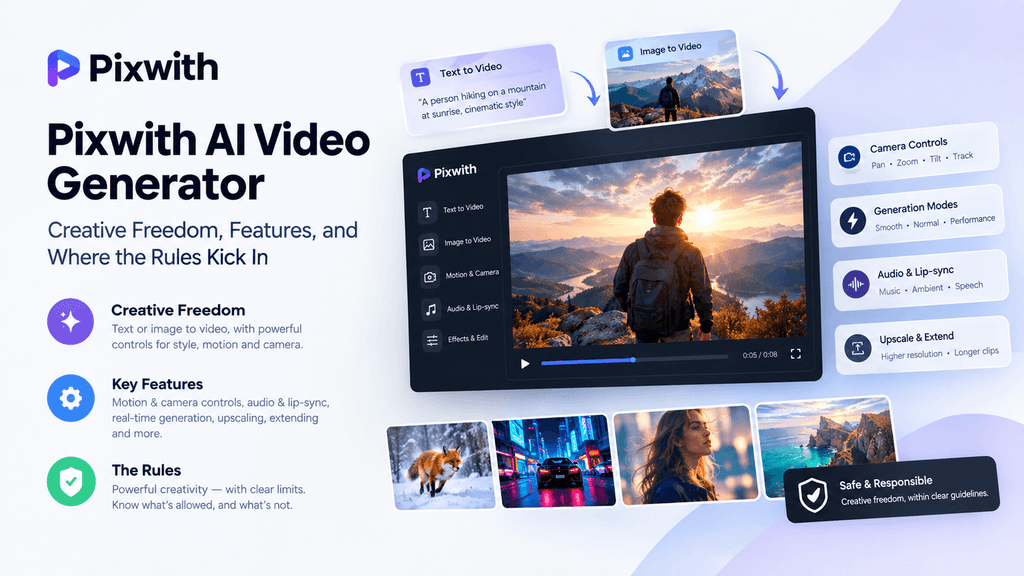
Most AI video tools sell you on speed. Pixwith leans harder into a different pitch: how much creative room it actually gives you once you’re past the basic prompt box. That’s a fair distinction to make, because a lot of generators technically let you type anything, but quietly nudge every output toward the same three or four looks. Pixwith’s range — in style, motion, and how far you can push a scene before it stops resembling your prompt — is the thing worth actually testing before you judge it off a landing page.
This piece walks through what that creative freedom looks like in practice, the technical limits that shape it, and the safety rules that sit underneath everything else. None of it is guesswork pulled from marketing copy — it’s how the platform behaves once you’re actually inside it.
Text-to-Video and Image-to-Video: Two Ways In
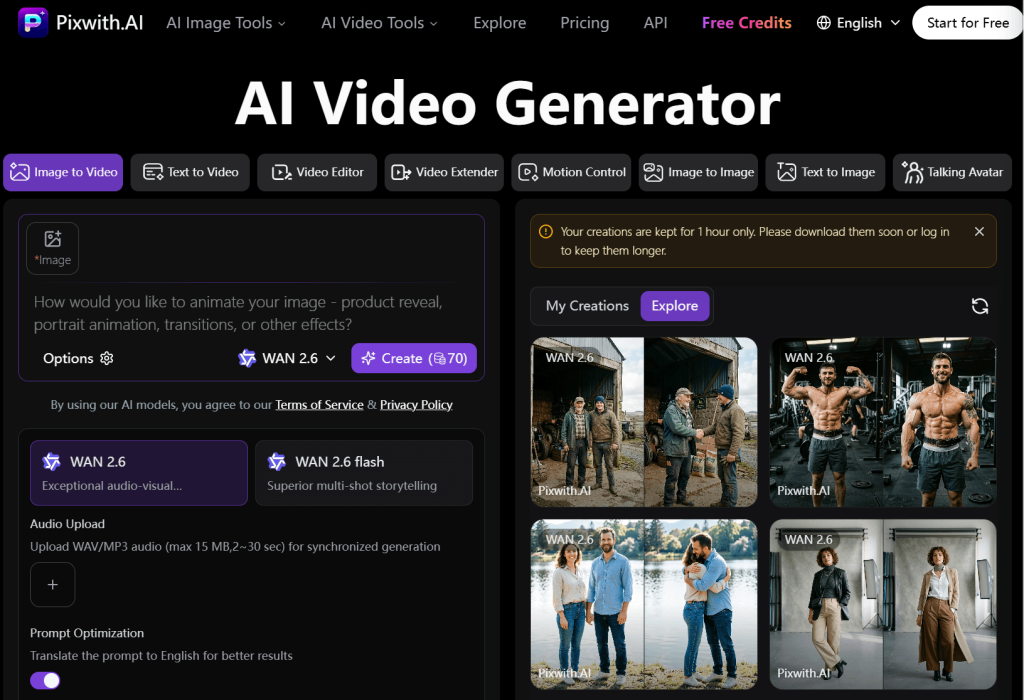
Pixwith gives you two starting points, same as most tools in this category. Text-to-video takes a written prompt — something like “a fox running through a snowy forest at dawn, slow motion” — and builds a clip from nothing but that description. Image-to-video flips it: you upload a photo or illustration, and the model animates it, adding motion, camera drift, or a sense of life to what was previously a still frame.
The image route tends to hold together better on a first try, since the model has an actual visual anchor rather than reconstructing a scene from words alone. A lot of creators lean on that — starting with a still they’ve shot or generated separately, then bringing it into Pixwith as the base frame, which leaves more room to control composition before motion enters the picture.
Motion and Camera Controls: This Is Where the Range Shows
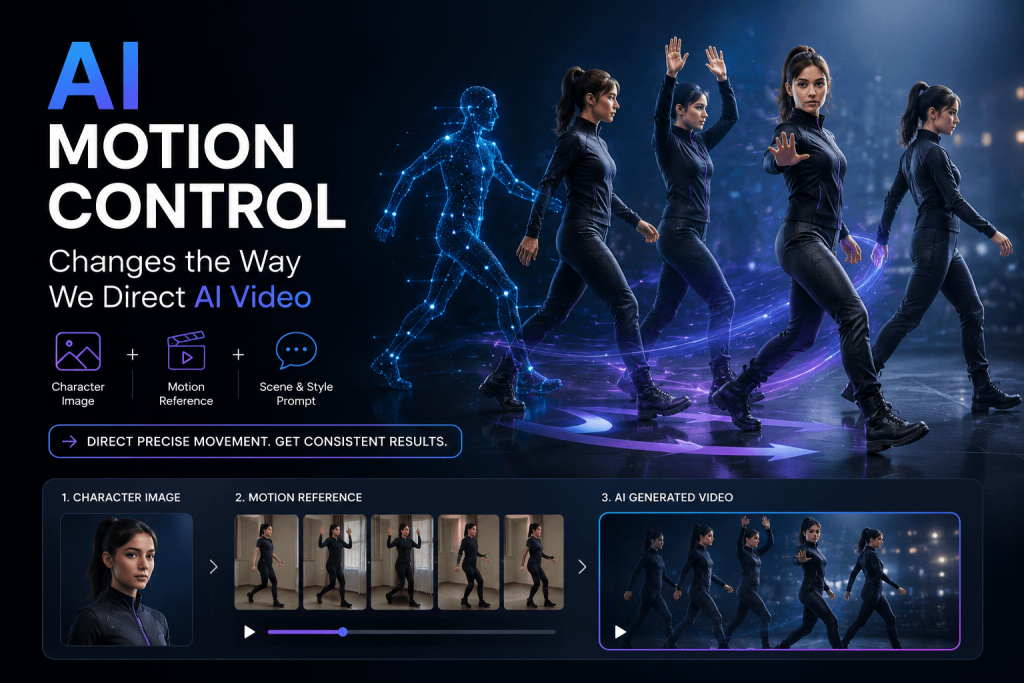
Where Pixwith’s creative freedom actually shows up is in how much you can adjust after the initial generation. You’ll find presets for smooth, normal, and performance modes — smooth prioritizing fluid, cinematic movement at the cost of render time, performance trading some of that polish for speed when you’re cycling through variations rather than finalizing one.
Camera behavior goes further than a lot of competitors bother with. Pan, zoom, tilt, and tracking shots can be set through a preset menu or written directly into the prompt, and combining them lets you push toward something that looks intentionally shot rather than generated. That layering is really the core of what people mean when they talk about Pixwith’s creative range — it’s less about one flashy feature and more about how many small controls stack on top of each other.
It also shows in how forgiving the platform is about mixed instructions. Ask for a slow push-in combined with a handheld wobble and a color palette lifted from a specific mood, and Pixwith will usually attempt all three at once rather than picking the dominant one and dropping the rest. That willingness to hold several instructions together is what makes the tool feel less like a template picker and more like something you’re actually directing.
Audio and Lip-Sync
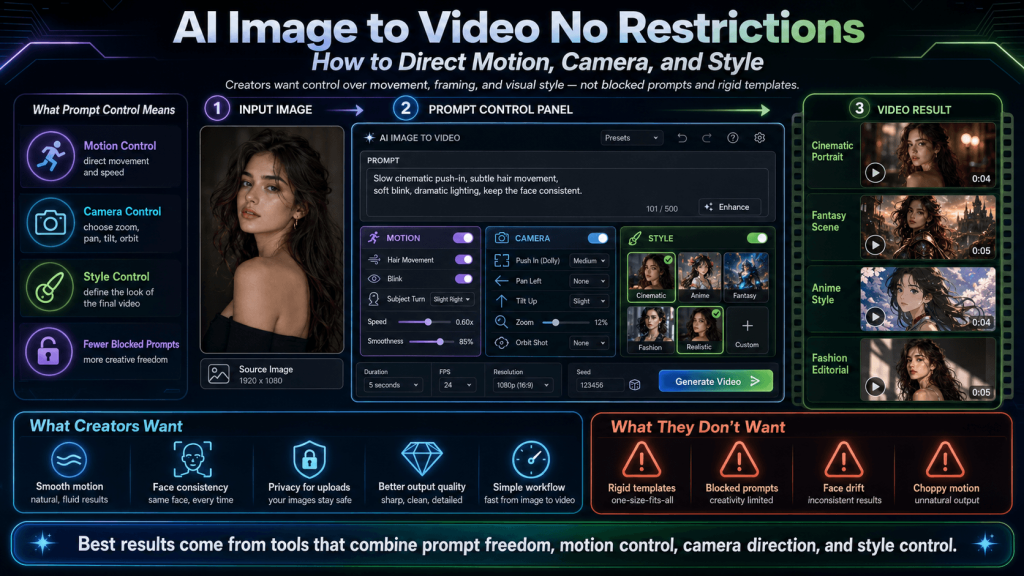
Audio came later to Pixwith than the video side, and it still shows in places. Auto-sound generates background music or ambient noise that roughly matches a scene’s mood — tense, upbeat, calm — without needing a separate editor. Auto-speech goes a step further, syncing generated or uploaded dialogue to a character’s mouth movements.
The lip-sync holds up fine on short lines and close-ups, but it loosens on wide shots or fast dialogue. Worth treating as a rough draft rather than a final track if audio actually matters to the project — a product explainer, a short film, anything with real speaking parts.
Real-Time Generation Is Where the Freedom Gets Real
Most write-ups on AI video tools still describe the old clip-by-clip loop — type something, wait, get eight seconds back, repeat. Pixwith’s real-time mode, sometimes labeled R1, breaks that pattern. Instead of isolated clips, your inputs act as ongoing impulses on a scene that keeps evolving rather than resetting each time.
This is arguably the clearest expression of the creative-freedom pitch: you’re steering a scene as it plays rather than reviewing a finished render and deciding whether to try again. It’s more compute-intensive than standard generation and still rough around the edges, but it changes the relationship between creator and output — closer to directing something live than requesting a file.
Upscaling, Extending, and Cleanup
Once a clip is close to right, Pixwith offers a second layer for refining it. Upscaling pushes resolution higher for clients or platforms expecting sharper output than the base render. Extend takes an eight-second clip and stretches it further without starting over, stitching new frames onto the end while trying to hold motion and style steady.
There are basic visual effects too — color grading, stylistic filters, speed adjustments — sitting closer to a lightweight editor than a generation tool. None of it swaps in for a real editing suite, but it’s usually enough to get something client-ready without leaving the platform. For creators juggling several small deliverables in a day, staying inside one tool for both generation and cleanup ends up saving more time than the upscaling feature itself does.
The Limits That Shape How Much Freedom You Actually Get
Creative range still runs into hard technical ceilings, and Pixwith is no exception. Standard generation caps out short — typically five to eight seconds per render — unless you’re using Extend or real-time mode to build something longer. Prompt length is capped too, usually around 800 characters, which covers a detailed scene description but not a full script.
Render time swings more than people expect. On turbo settings, an eight-second clip might finish in around ten seconds; switch to high-resolution output and it can take a few minutes instead. That speed-versus-quality trade-off is worth testing early, particularly if you’re planning to run several variations before locking a final cut.
The free tier follows a fairly standard shape — a starting batch of credits (often close to 90), a smaller daily allowance after that (roughly 60), and a watermark on anything exported without upgrading. Enough to judge whether the platform fits your workflow, not enough to run a real production on.
Where the Safety Rules Kick In
Creative freedom on Pixwith doesn’t mean an absence of rules — it means a wide lane bounded by a handful of firm lines, and it’s worth knowing exactly where those sit. Sexually explicit content, nudity, and suggestive or over-exposed clothing are blocked by automated filters before a clip ever renders. That’s not a soft suggestion; it’s built into the generation pipeline itself.
The same applies to harmful content more broadly — violence framed as real-world instruction, hate speech, harassment, threats, and anything depicting illegal activity gets flagged and refused. Content involving minors gets zero tolerance: any sexual, suggestive, or otherwise inappropriate depiction is banned outright, whether the source is a real photo or an entirely fictional character.
Copyright and misinformation close out the list. Material that infringes on existing copyrighted work, deepfakes built to harass or deceive, or content designed to spread false information all breach the platform’s guidelines. Consequences scale with the offense — first instances usually mean content removal, repeat violations bring temporary restrictions, and serious breaches lead to permanent suspension.
None of this is unique to Pixwith. The same boundaries show up across PixVerse’s community guidelines and PixAI’s content policy in nearly identical language: no explicit content, no harassment, no inappropriate depictions of minors, no deceptive deepfakes. It’s less a branding choice than a survival one — no platform in this category keeps its app store listing, payment processor, or hosting partner without filters like these in place. The creative freedom Pixwith offers lives entirely inside that boundary, not around it.
The Prompts That Trip the Filters — and Why
A lot of first-time users get blocked without trying to make anything explicit — their wording is just ambiguous enough to read as risky to an automated system. Phrasing that implies undress, extreme close-ups on children, or violence framed as “realistic” tends to get flagged even when the intent was harmless: a costume description, a family photo animation, an action beat for a game trailer.
Specificity is usually the fix. “A child laughing on a swing in a park, daytime, wide shot” clears review far more reliably than “a kid having fun,” simply because there’s less for the filter to guess around. The same logic applies to violent or action content — naming the genre, camera distance, and context (a stunt sequence, a choreographed fight) gives the model enough to tell stylized content apart from something reading as a genuine threat.
Worth knowing too that these filters check both the prompt and the rendered output, so a clip can clear the initial prompt review and still get rejected afterward if the frames drift somewhere the text didn’t intend. That’s a second layer of the same process rather than a glitch, and it’s almost always solved by adjusting the prompt rather than appealing the rejection.
What the Creative Freedom Actually Buys You
The feature list matters less than people assume when judging a platform like this — most tools in the category now offer some version of text-to-video, image-to-video, and light editing. What separates Pixwith is how much room those features leave for actually shaping a scene: layered camera and motion controls, a real-time mode that behaves more like directing than requesting, and a free tier generous enough to test all of it before paying.
The most useful habit is a plain one: write a specific, well-scoped prompt rather than a broad one. Vague inputs produce vague results and are more likely to snag on a content filter simply because the model has to guess at intent. A tight, literal description — subject, setting, camera movement, mood — tends to render faster, hold together better, and stay comfortably inside whatever rules the platform enforces.
Pixwith’s version of creative freedom isn’t about having no rules — it’s about how much you can do inside the ones that exist. That distinction is easy to miss from a landing page and obvious within the first few clips you actually generate.
Quick Takeaway
Test Pixwith’s free tier with two or three specific prompts, try Extend and real-time mode back to back, and read the actual content policy rather than the FAQ summary. That fifteen minutes tells you more about the platform’s real range than any comparison article will.