
AI video generation technology has advanced significantly, making it possible to create realistic, cinematic videos from simple text prompts. Platforms like Artlist allow users to compare multiple AI video models in one place.
When comparing AI video models, we evaluate motion realism, facial details, lighting, prompt accuracy, and subject consistency. Since each model performs differently depending on the task, testing multiple models can help identify the most suitable option for a particular project.
Different models have different strengths. Google Veo 3.1 excels at cinematic footage and storytelling, while OpenAI Sora 2 Pro is well suited for realistic scenes and product advertisements. Kling O3 and Kling 3.0 perform well in human motion and character movement, whereas Hailuo 2.3 is useful for product shots, animations, and expressive characters.
Another efficient workflow is to generate an image first and then convert it into a video. This approach provides us greater control over camera angles, composition, and the final output while potentially reducing generation costs.
How Were the AI Video Tests Conducted?
The comparison followed a structured testing process rather than simply generating random videos.
1. Select the AI Video Models
First, several popular AI video generators were selected, including Sora 2, Seedance, Google Veo 3.1, and Kling 3.0. The goal was to compare their strengths across different types of video generation.
2. Create Specific Test Scenarios
Instead of using one generic prompt, different real-world use cases were designed for each model.
The tests covered things such as:
- Realistic physical effects
- Fast action scenes
- Human dancing and movement
- Cinematic environments
- Facial expressions and emotions
- Talking-head content
- Image-to-video generation
- Start-frame and end-frame transitions
This made it possible to see which model performs best for which type of task.
3. Give Each Model Detailed Prompts
Detailed prompts were written to describe exactly what the AI should generate.
For example, one Sora 2 test asked for a wine glass falling from a restaurant table, breaking into pieces, with realistic wine movement, lighting, and sound.
For the human-motion test, the prompt specified the dancer’s clothing, movements, camera movement, body positioning, and overall environment.
4. Compare the Generated Results
After generating the videos, the outputs were examined for things like:
Visual quality → Realism → Motion → Prompt accuracy → Character consistency → Facial expressions → Audio → Scene continuity
The idea was not simply to ask “Which video looks best?” but rather:
“Which AI followed the instructions most accurately while producing the most realistic and usable result?”
5. Identify Each Model’s Strength
Finally, the results were used to determine what each model is particularly good at.
For example:
- Sora 2 → realistic physics and high-energy scenes
- Seedance → complex human movement and fast experimentation
- Veo 3.1 → cinematic visuals and controlled transitions
- Kling 3.0 → human emotions, expressions, and character-driven content
So the overall approach was essentially the same category of task → detailed prompt → generate → inspect the output → compare strengths and weaknesses → choose the best model for that specific use case.
Do You Need to Buy Many Tools to Test AI Video Models?
No. You do not need to buy separate subscriptions for every video model (Kling, Seedance, Veo, Runway, Luma, etc.). That would be expensive and unnecessary.
1. What Do You Actually Need to Buy for Testing?
For initial testing you need almost nothing paid:
- A computer or phone with a good internet connection
- A free account on 1–2 aggregator platforms
- Optional: a small amount of credits ($5–15) if you want to test premium models more thoroughly
You do not need:
- Separate paid accounts for each model
- Expensive GPUs (unless you want to run open-source models locally)
- Multiple monthly subscriptions just for testing
2. Best Ways to Save Money While Testing
Here are the practical money-saving methods:
| Method | Cost | What You Get | Recommendation |
| Free tiers of individual models | Free | Limited daily/weekly credits (Kling, Dreamina/Seedance, Google Flow/Veo, PixVerse, etc.) | Good for quick tests |
| Aggregator platforms (best option) | Free or very low | Access to many models in one place with shared credits | Strongly recommended |
| Pay-as-you-go APIs (Fal.ai, Replicate, Leap) | Pay only for what you generate | No monthly commitment | Excellent for serious testing |
| Open-source models (Wan 2.2, LTX-2.5) | Free (if you have GPU or rent cheap cloud) | Unlimited use | Best long-term for high volume |
Smart strategy:
- Start completely free on aggregators + free daily credits.
- Spend a small amount ($10–20 total) only on the 2–3 models that look most promising for your ads/explainers.
- Only after you decide your main model(s), consider a proper paid plan or API.
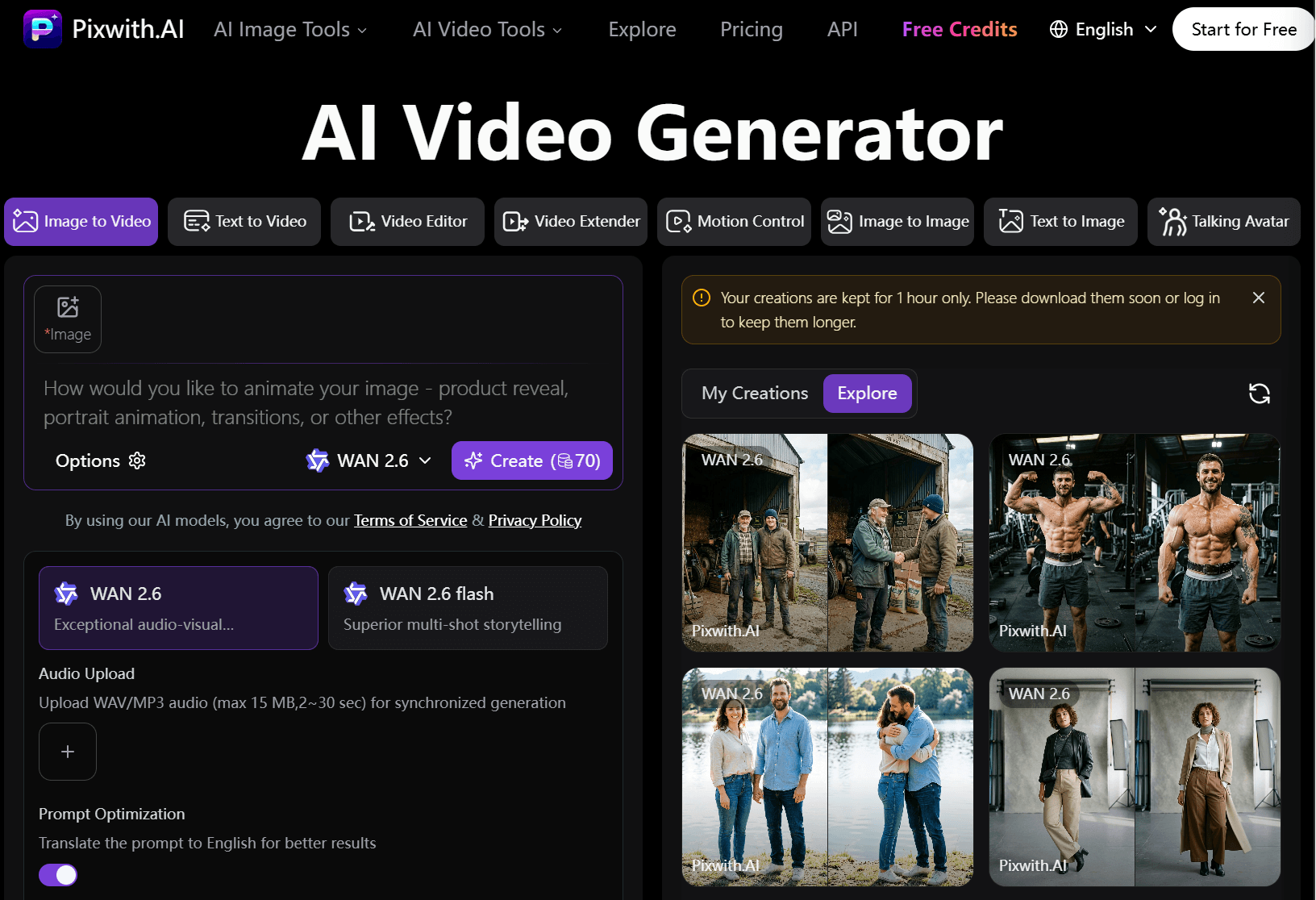
3. Recommended Platform: Pixwith.ai
Pixwith.ai is exactly the kind of platform you asked about.
Why it is useful for testing:
- It is an all-in-one aggregator — many leading video models are available in one place (Wan series, Kling, Veo 3.1, Seedance, Grok Imagine, Pika, PixVerse, and others).
- You can switch between models easily and test the same prompt across different engines.
- It has a free tier:
- Basic image model works without signup.
- Free credits available after signup for testing video models.
- Supports both Text-to-Video and Image-to-Video.
- Watermark-free options on higher plans, but you can start testing for free or with very low cost.
- No need to create separate accounts for each model.
How to use it for testing:
- Go to pixwith.ai
- Sign up (or try the free basic mode)
- Write the same prompt (or upload the same image)
- Generate the video using different models one by one
- Compare quality, motion, consistency, and speed side-by-side
This is one of the easiest and cheapest ways to evaluate multiple models without spending much money.
Must Read: How to Properly Test Video Models
Do not rely on marketing demos or showreels. Run a controlled, fair test using your actual use case.
Step-by-Step Testing Method
1. Define 4–6 Representative Test Prompts
Create prompts that match your real work. Examples:
- A product rotating on a table with smooth camera move.
- A person speaking to camera (close-up).
- An explainer scene with text or graphics appearing.
- A longer continuous action (10–15+ seconds if needed).
- One complex multi-subject or physics-heavy scene (liquid, fabric, hands).
2. Keep Everything Identical
- Use the exact same prompt text for every model.
- Use the same starting image (if doing image-to-video).
- Generate the same duration and resolution where possible.
- Decide in advance how many retries you allow (e.g., 2–3 attempts per model).
3. Score Each Output Objectively
Rate from 1–5 on these key dimensions (weight them according to your needs):
- Prompt adherence — Did it follow instructions?
- Motion realism & physics — Does movement look natural?
- Temporal consistency — Does the subject stay stable across frames?
- Visual quality / photorealism — Texture, lighting, detail.
- Character/identity consistency (if relevant).
- Audio quality & lip-sync (if the model generates sound).
- Usable length — How long before it degrades?
- Cost & speed — Time and money per acceptable take.
4. Practical Testing Tips
- Test through an aggregator (Pixwith.ai, Fal.ai, Replicate, Krea, Higgsfield, Leap, etc.) so you can try many models without separate accounts.
- Always generate image-to-video versions of your best stills — this is usually more reliable than pure text-to-video for ads.
- Watch the full clip at normal speed and also frame-by-frame for artifacts (warping limbs, flickering textures, identity drift).
- Calculate real cost: (price per second × length) × average number of attempts needed to get a usable result.
- Re-test every few months — models improve quickly and pricing changes.
- Simple Decision Rule
Filter first by hard constraints (duration needed, audio required, resolution, budget).
Then rank the remaining models by your scored results + cost-per-accepted-shot.
Pick 1–2 primary models and keep 1 backup.
How to Compare AI Video Models in One Place
With so many AI video models available today, comparing them individually can be frustrating. You have to open different platforms, create separate accounts, manage different credits, and then try to remember which model produced the better result.
Pixwith.ai makes this comparison much easier by bringing multiple AI video models into one platform.
Instead of testing each model on a separate website, you can select different models from Pixwith and use them to generate videos from the same idea.
Step 1: Choose Your Video Models
Start by opening Pixwith’s AI video generation workspace.
From the model selector, you can choose from several available models, including options such as Sora, Google Veo, Kling, Alibaba Wan, ByteDance SeeDance, and Runway.
This is important because each model is designed with different strengths. Some focus more on cinematic storytelling, some on action and movement, while others are better suited to character consistency or stylized content.
Step 2: Create One Standard Prompt
To make the comparison meaningful, don’t give every model a completely different prompt.
Instead, create one detailed test prompt and use the same prompt across the models.
For example:
A cinematic night-time street scene where a sports car speeds through a rain-soaked city, neon lights reflecting on the wet road, realistic camera movement, natural motion, detailed environment and cinematic lighting.
Now the models are working from the same instructions.
Step 3: Generate the Same Video With Different Models
Select the first model and generate the video.
Then switch to another model and use the exact same prompt again.
Repeat the process with several models.
Because Pixwith allows different models to be selected from the same AI video workflow, you can compare their outputs without constantly switching between different platforms.
Step 4: Test Different Types of Prompts
One prompt isn’t enough to determine which model is best.
Create several test categories.
Cinematic Test
Test camera movement, lighting, composition, depth, and overall visual quality.
Human Motion Test
Ask the models to generate complex actions such as dancing, running, fighting, or interacting with objects.
Character Consistency Test
Use the same character throughout a sequence and check whether the face, clothing, and physical appearance remain stable.
Image-to-Video Test
Start with the same image and ask different models to animate it. Pixwith supports image-to-video generation, allowing a static image to be transformed into a moving scene.
Audio Test
If audio generation is available for the selected model, compare how well it handles dialogue, ambient sound, music, and sound effects. Pixwith also highlights cinematic audio generation for its video workflows.
Step 5: Compare the Results
Once all the videos are generated, evaluate them using the same criteria:
- Visual realism
- Prompt accuracy
- Motion quality
- Character consistency
- Camera movement
- Lighting
- Physics
- Audio quality
- Overall cinematic look
Don’t simply choose the video that looks the prettiest.
The better model is the one that follows the prompt accurately while maintaining realistic motion and consistency.
Step 6: Find the Best Model for Each Task
The final goal isn’t necessarily to declare one model the winner.
For example, one model might produce the best cinematic footage, while another might handle human movement better. A third model could be stronger for stylized or anime content.
Pixwith’s model comparison information similarly positions different models for different strengths—for example, Sora 2 for cinematic storytelling, Veo 3.1 for professional visual fidelity, Kling for action and drama, Wan for stylized content, and SeeDance for character-focused work.

Why This Testing Method Works
The biggest advantage of this approach is consistency.
You’re not comparing a Sora video made on one website with a Kling video made using a completely different prompt and workflow.
Instead:
Same prompt → Same creative idea → Different AI models → Side-by-side results
That gives you a much clearer picture of what each model can actually do.
Turn the Test Into a Real AI Video Comparison
You can take this even further by creating a complete benchmark.
Choose 5–10 prompts covering different scenarios, run every prompt through the same group of models, save the outputs, and score each result.
At the end, you’ll have your own practical ranking of the models—not just based on marketing claims, but on how they perform on the exact types of videos you want to create.
And because Pixwith brings multiple video models together in one workspace, it can serve as a convenient place to run this kind of side-by-side experiment.
We Tested the Top AI Video Models: Here’s What We Found
AI video generation has improved significantly, making it possible to create realistic scenes, cinematic shots, and natural character movements using simple text prompts. However, not every AI video model performs equally well. Some are better at cinematic visuals, while others excel at realistic motion, storytelling, or product advertisements.
To understand these differences, we compared several leading AI video models using different scenarios. We focused on four key areas: cinematic realism, human motion, storytelling, and product advertising. By evaluating the generated clips across these tasks, we aimed to understand where each model performs well and where it still struggles.

1. Veo 3.1: Cinematic Visuals and Storytelling
We tested Google’s Veo 3.1 using a prompt describing a woman walking down a rainy street. The goal was to evaluate how well the model handled cinematic lighting, camera movement, and environmental details.
The generated footage had a strong cinematic appearance, with dramatic lighting, shallow depth of field, and subtle handheld camera movement. It also followed the prompt closely and generated audio alongside the visuals. However, some facial details, particularly around the eyes, still appeared slightly artificial.
We also tested Veo 3.1 with a storytelling scenario involving a chef preparing dishes in a small restaurant. It produced a coherent sequence of actions and handled the progression of the scene effectively.
Based on these comparisons, Veo 3.1 demonstrated strong performance in cinematic realism and prompt-based storytelling.
2. Sora 2 Pro: Realism and Product Advertisements
We evaluated OpenAI’s Sora 2 Pro using the same rainy-street prompt. The resulting video combined realistic environmental details with a cinematic appearance. It also introduced slow motion, which was not explicitly required by the original prompt, showing how the model can interpret a scene creatively.
For our product advertising test, we used a luxury watch placed on a black stone surface with dramatic side lighting. Sora 2 Pro produced a visually appealing result with realistic lighting and a polished commercial aesthetic.
However, the model did not offer the same audio-generation option or 4K output capability in the tested setup. These differences are important when selecting a model for a particular production workflow.
In our comparison, Sora 2 Pro delivered promising results for realistic scenes and luxury product advertisements.

3. Kling: Natural Human Motion
We tested Kling using a human-motion scenario featuring a man jogging through a modern office lobby. Our objective was to assess movement quality, character consistency, and how accurately the model followed the prompt.
The generated clip showed natural-looking movement and maintained a convincing appearance throughout the scene. Although some facial details, particularly the eyes, still revealed minor AI-generated imperfections, the overall motion looked realistic.
Among the models compared in this specific test, Kling demonstrated the most natural human movement.

4. Hailuo 2.3: Product Shots and Character Animation
We also examined Hailuo 2.3, which offers capabilities for product-focused visuals, animation, and expressive characters. Its available generation settings were somewhat more limited than those of some competing models.
These capabilities make it a model worth considering for projects that require animated characters or visually focused product scenes. However, the source comparison did not provide enough detailed results to establish its performance across all four testing scenarios.
5. Comparing Models Across Different Tasks
Rather than judging every model using a single prompt, we compared their outputs across several scenarios. This helped us identify differences in their strengths.
- Cinematic realism: Veo 3.1 produced convincing cinematic footage with detailed lighting and camera effects.
- Human motion: Kling demonstrated particularly natural movement in the jogging scenario.
- Storytelling: Veo 3.1 handled the chef-preparation sequence effectively.
- Product advertising: Sora 2 Pro produced a polished luxury-watch commercial-style video.
These findings reflect the specific prompts and outputs in our comparison. Performance can vary depending on the scene, prompt wording, generation settings, and the number of attempts.
What We Learned from Testing AI Video Models
Our comparison showed that there is no single factor that determines the quality of an AI-generated video. Realistic movement, consistent facial details, believable lighting, accurate prompt interpretation, and frame-to-frame stability all influence the final result.
We also found that a model performing well in one scenario may not produce the same quality in another. A cinematic scene, a running character, a storytelling sequence, and a product advertisement all place different demands on a video generation model.
For this reason, testing models with the same prompts within each scenario can provide a more useful comparison than relying solely on demonstrations or general quality claims.
Which AI Video Generator Can Create Videos Like This?
Looking to Recreate This Cinematic AI Video?
You’ve seen the video. Now you’re probably wondering: which AI video generator can recreate this style?
Video: https://youtube.com/shorts/I4UkPTqkxCU?feature=share
If you’re aiming for realistic characters, cinematic camera movements, natural-looking motion, and consistent visuals across multiple shots, choosing the right AI model can make a significant difference.
Rather than picking a tool based on popularity alone, we compared three promising options: Runway Gen-4.5, Kling AI, and MiniMax H3.
Our comparison focuses on the features that matter most when creating cinematic, character-driven AI videos.
We Tested Multiple AI Video Generators to Find the Best One
Want to create a cinematic AI video like the one above? We tested several popular AI video generators to find out which tool delivers the best results for realistic characters, smooth motion, and cinematic visuals. Instead of relying on marketing claims, we compared their output quality to help you choose the right tool for your next video project.
How Did We Compare the AI Video Tools?
We evaluated each generator based on five key parameters: visual realism, character consistency, motion quality, prompt accuracy, and overall generation quality. We also considered ease of use and value for money to identify which tool offers the best balance of performance and accessibility.
Which AI Video Generator Came Out on Top?
After comparing the results, Runway Gen-4.5 emerged as our top pick for cinematic control and prompt-directed scenes, while Kling AI stood out as another strong option for reference-based video creation. The best choice ultimately depends on your desired video style, but our comparison gives you a practical starting point without the hassle of testing every tool yourself.
Ready to Create Your Own AI Video?
Now it’s your turn! Choose the tool that best fits your creative vision, experiment with your prompts, and start turning your ideas into videos. Whether you’re creating content for YouTube, social media, or your next creative project, the right AI video generator can make the process easier.
Conclusion
Our comparison highlights the different capabilities of modern AI video models. Veo 3.1 showed strong results in cinematic realism and storytelling, Sora 2 Pro performed well in realistic scenes and product advertising, and Kling delivered natural human movement in our motion test. Hailuo 2.3 also offers capabilities relevant to product visuals and character animation, although more comparative testing would be needed to assess it fully.
Ultimately, choosing an AI video model depends on the intended project. By testing models across multiple scenarios and examining their strengths and limitations, creators can make more informed decisions about which tools best fit their production needs.