
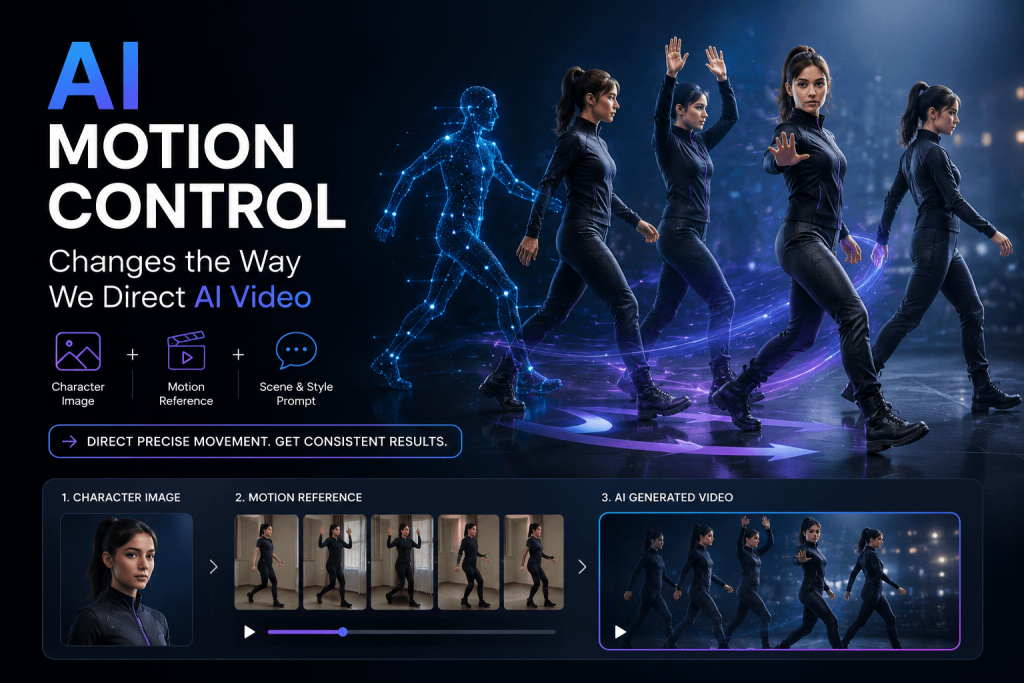
Picture this: you’ve got a perfect AI-generated character image. Great face, great lighting, exactly the vibe you wanted. Now you need that character to take two steps forward, pause, turn slightly, raise one hand, look toward the camera, then step back.
Sounds simple enough to type into a prompt box, right? In practice, the model usually gets the general idea — a person moving, maybe a hand going up somewhere — but the timing, the order, the exact choreography tends to slip away. The AI understands “raise a hand” as a concept, not as a specific beat in a specific sequence.
That’s the gap AI Motion Control is built to close.
The real shift here isn’t “better animation.” It’s a change in what the creator’s job actually is. Instead of describing motion and hoping the model interprets it the way you pictured, you demonstrate the motion and let the AI transfer it onto your character. I spent the last couple of weeks testing this using Pixwith’s AI Motion Control tool, and what follows is what I found — the wins, the failures, and the workflow I ended up settling on.
The Problem Isn’t AI Video Quality Anymore — It’s Directability
Anyone who’s spent real time with generative video tools already knows the visuals aren’t the bottleneck anymore. Text-to-video and image-to-video models can produce genuinely stunning clips. The issue is that “stunning” and “correct” are two different things.
Type “woman dancing energetically” and you’ll get something that looks like dancing. But you won’t get the exact arm position you had in mind, the specific turn, the weight shift from one foot to the other, that half-second pause before the next gesture starts. The model is guessing at all of that, and its guesses, while often pretty, rarely match what was actually in your head.
It helps to separate two ideas that get lumped together: generation and direction. Generation is asking the model, “give me something that looks like this.” Direction is telling it, “perform this particular action.” Most AI video tools are still built around generation. Motion Control is one of the first I’ve used that actually leans into direction.
What AI Motion Control Actually Changes
The old workflow looked roughly like this: image plus prompt, the AI interprets what movement makes sense, and out comes a video. There’s a whole layer of guesswork baked into that middle step.
AI Motion Control replaces that guesswork with a reference. The new workflow is: character image plus a motion reference clip, the AI transfers that specific performance onto your character, and you get a new video that follows the reference almost beat for beat. Kling’s own documentation on Motion Control describes something similar — pulling motion out of a reference video and applying those controlled actions and expressions onto a character.
Here’s a simple way to think about the three inputs that matter:
- Your image answers: who is performing?
- Your reference video answers: how are they performing?
- Your prompt answers: where, why, and in what visual style is the performance happening?
Once that framework clicks, the whole tool makes a lot more sense. You’re not writing a longer, more desperate prompt hoping the model finally gets it. You’re just showing it.
I Tested the Same Idea Two Ways: Prompting vs Motion Control
To actually see the difference instead of just reading about it, I picked one character image and one fairly distinctive motion sequence: a person walks sideways a couple of steps, raises both hands, rotates their upper body, lowers one arm, and steps forward toward the camera. Nothing wild, but enough moving parts that a model has to get several things right at once.
Test 1 — Asking the AI to Understand the Movement From Text
For the first pass, I wrote out the sequence in plain language and paired it with the character image, using standard image-to-video generation — no reference clip, just words.
The output captured the general spirit of movement, but breaking it down piece by piece, the gaps showed up fast:
| What I checked | What happened |
| General action | Roughly present, but softened and vague |
| Timing | Steps and gesture blended together instead of following in sequence |
| Hands | Raised, but not both, and not evenly |
| Body position | Turn was much smaller than intended |
| Identity | Character stayed recognizable |
| Camera | Framing held up fine |
| Repeatability | Regenerating gave a noticeably different performance each time |
That last row is the one that stuck with me. Every regeneration was its own little surprise. Sometimes a nice surprise, sometimes not, but never something I could count on twice.
Test 2 — Giving AI a Motion Reference Instead
For the second test, I recorded a short clip of myself doing the exact sequence — nothing fancy, just my phone propped on a shelf — and fed the character image plus that reference clip into Pixwith’s Motion Control tool.
The difference wasn’t subtle. The sideways steps landed where they should. Both hands came up together instead of one lagging behind. The upper-body rotation matched what I’d actually done, and the pause before stepping toward the camera showed up in roughly the right spot.
It wasn’t a perfect one-to-one copy — a few frames near the hand-raise looked slightly stiff, and the final step was a touch faster than my reference — but it was close enough to call it a different category of result, not just a nicer version of Test 1.
What Surprised Me Most Wasn’t the Motion Quality — It Was Predictability
Here’s the part I didn’t expect going in: the biggest win wasn’t that the video looked better. It’s that I had a reasonable idea of what I was going to get before I hit generate.
That matters more than it sounds like it should. For a single pretty clip, “surprise me” is fine. But the moment you’re working on anything with continuity — an ad, a recurring character, a virtual influencer who needs to feel consistent across a dozen posts — random-but-attractive motion stops being useful. Motion Control starts to feel less like a video effect and more like a lightweight way to direct a performance.
Your Reference Video Is Basically a New Kind of Prompt
We’ve all gotten reasonably good at text prompt engineering — learning which words push a model toward the lighting or mood we want. Motion Control introduces a parallel skill: reference engineering. The quality of your instruction now depends on how clearly your reference clip demonstrates the movement, not just how well you describe it.
Text prompts still do real work here, just a different kind. They handle the scene, the environment, the visual style, the lighting, the mood. The reference clip handles the action itself — the gestures, the timing, the rhythm, the body mechanics. That matches the general guidance around reference-based motion systems: let the prompt build the world, and let the reference clip run the show inside it.
My First Motion Reference Wasn’t Very Good — Here’s What I Changed
I’d rather show you the mess than pretend everything worked on the first try, because it didn’t.
Problem 1: mismatched body visibility. My source image only showed the character from the waist up, but my reference clip had big leg movements built into it. The transfer had nothing to work with for the lower body, and it showed. Lesson: match the visible anatomy in your image to what your reference actually needs.
Problem 2: the performer drifted out of frame. Partway through my reference clip, I stepped slightly outside the camera’s view, and the generated result got noticeably shakier right at that point. Lesson: keep the important action inside the frame the whole time, even if that means recording a wider shot than feels necessary.
Problem 3: I started too ambitious. My very first attempt at a reference clip involved a jump, a spin, crossed arms, and a fast camera pan, all in about three seconds. Complex, fast motion is a much harder problem than simple, deliberate motion, and I hadn’t earned the right to test the hard stuff yet. Lesson: start with walking, turning, and a single clear gesture before pushing into anything acrobatic.
Problem 4: my framing didn’t match. I once paired a tight close-up portrait with a wide, full-body reference clip, and the tool had to guess at proportions it simply didn’t have information about. Lesson: keep your character image and your reference footage reasonably consistent in framing.
The Motion-Control Input Checklist I Now Use
After enough trial and error, I settled into a routine I check before every generation.
Character image: subject clearly visible, face recognizable, limbs readable and not cropped mid-joint, natural proportions, framing that suits the motion you’re about to apply.
Reference video: one clearly identifiable performer, readable movement (not a blur), stable framing where possible, minimal unnecessary occlusion, motion appropriate for the character’s actual build, and a start and end position that make sense together.
Prompt: focused on environment, wardrobe, lighting, and visual treatment — not fighting the reference clip with contradictory instructions about movement.
Motion Control Doesn’t Mean “Anything Can Perform Anything”
It’s worth being upfront about where this breaks down, because it does, in a few predictable ways. Extreme proportion differences between the reference performer and the character can produce motion that doesn’t quite make sense — a tall, thin character forced into movement built for a stockier body, for example. Occlusion is a recurring headache: crossed arms, hidden hands, a prop blocking the torso, or the performer briefly vanishing all make the transfer job harder. Very fast action — quick spins, dense layered choreography — is more likely to produce inconsistencies from frame to frame. Multiple characters interacting is a tougher problem than a single performer; current guidance around these tools generally treats multi-character scenes as the harder case, and my own tests backed that up.
And maybe the most important limitation: motion transfer can’t rescue a weak starting image. If your character reference is low quality or ambiguous to begin with, no amount of good choreography fixes that.
Seven Things I Would Actually Use AI Motion Control For
- Reusing one performance across different characters. Record a single motion reference and apply it to a realistic human, an anime-style character, a fantasy warrior, and a robot. One performance carrying across four completely different looks is a solid demonstration of what this technology is actually for.
- Building a recurring virtual influencer, reusing the same handful of gestures and mannerisms instead of generating random body language for every post.
- Turning ordinary phone footage into stylized performances — you supply the choreography, the AI character supplies the look.
- Testing choreography before a real shoot, as lightweight previsualization. Plenty of professional motion tools are already positioned this way for storyboarding.
- Recreating trending movements with original characters, particularly for short-form platforms. Worth flagging: if you’re using someone else’s footage as a reference, think about consent and usage rights before you publish.
- Giving brand mascots consistent body language instead of a different, disconnected performance in every ad.
- Using body language as actual storytelling, where a character’s movement becomes part of the narrative instead of a random byproduct of a generation you didn’t fully control.
Motion Control vs Image-to-Video: Which Should You Actually Use?
| What you’re going for | Better starting point |
| “Make this image feel alive” | Image-to-video |
| “Surprise me with cinematic movement” | Image-to-video |
| “Make this character walk naturally” | Either works |
| “Perform this exact gesture sequence” | Motion Control |
| “Copy this choreography” | Motion Control |
| “Repeat a similar performance across characters” | Motion Control |
| “Explore creative possibilities” | Image-to-video |
| “Control the performance” | Motion Control |
The short version: use image-to-video when you want the model to invent the motion. Use Motion Control when you already know what the motion should be.
A Practical Motion-Control Workflow Using Pixwith
Step 1 — Decide the performance first. Know the exact action you want before you touch the tool. Vague intentions produce vague reference clips.
Step 2 — Prepare the character image, with framing that actually matches the motion you’re about to bring in.
Step 3 — Prepare the reference movement. Record a short clip yourself, or use footage you have the rights to use.
Step 4 — Open Pixwith AI Motion Control. You can try AI Motion Control with Pixwith directly at pixwith.video-generator.ai/motion-control, alongside the rest of the platform’s video tools.
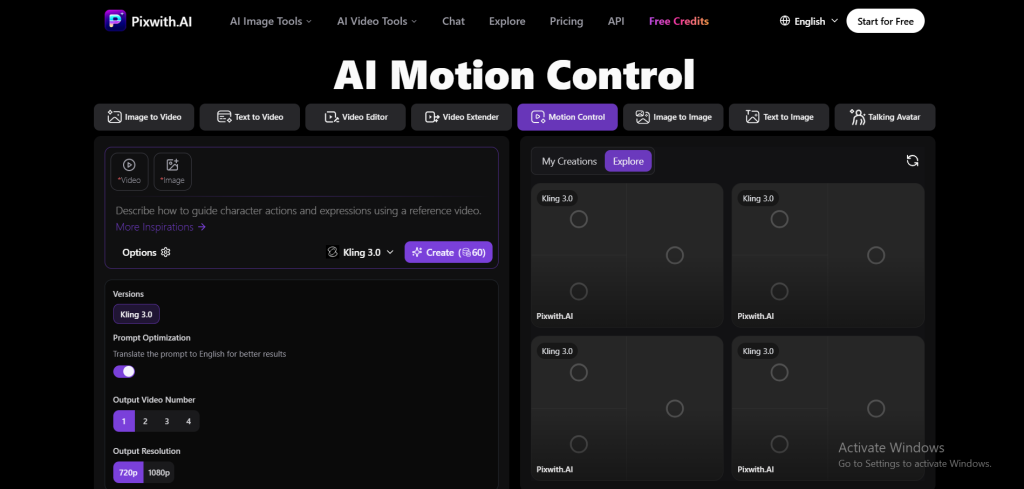
Step 5 — Add contextual instructions. Use the prompt for scene, lighting, environment, and mood, and let the reference clip carry the performance itself.
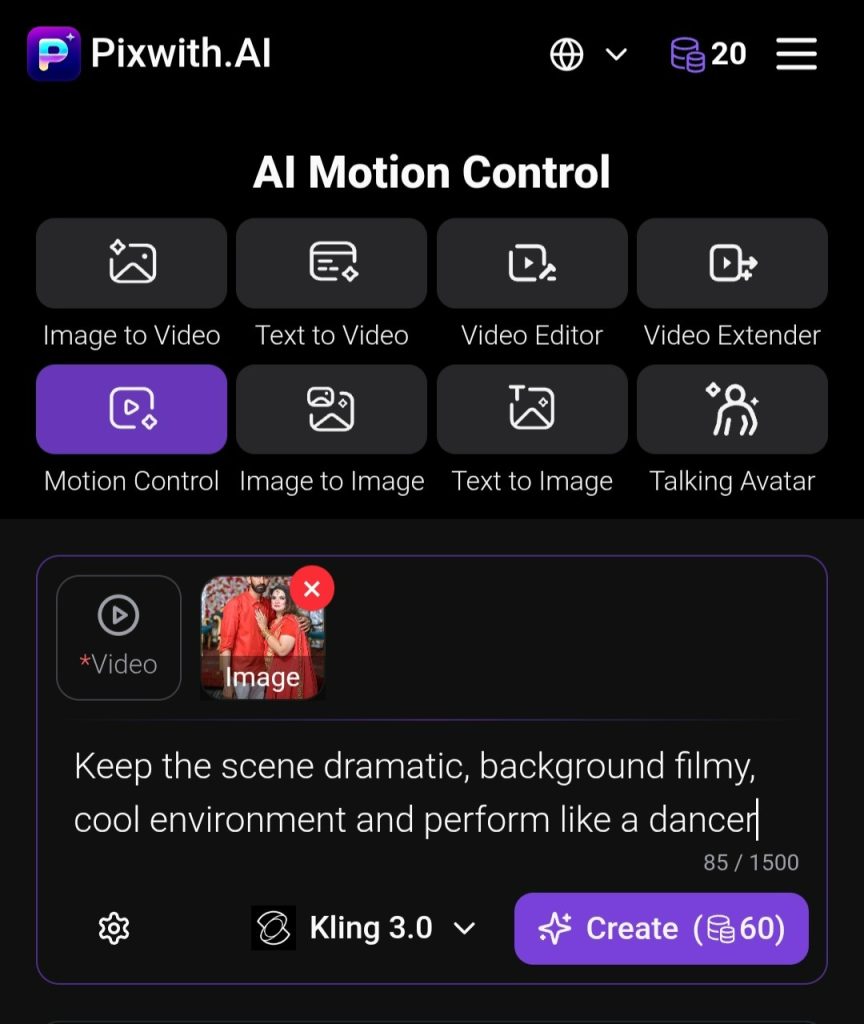
Step 6 — Generate and evaluate honestly. Don’t just ask “does this look good?” Ask whether it reproduced the intended movement, whether the character stayed recognizable, whether the body stayed anatomically coherent, and whether you’d genuinely use the clip.
Step 7 — Fix the input before you regenerate ten more times. When something goes wrong, work backward through image, reference, framing, motion complexity, and prompt to find the actual cause, then fix that one thing.
The Bigger Shift: AI Video Is Becoming Less Like Prompting and More Like Filmmaking
Early generative video followed a simple pattern: describe, generate, hope. What’s emerging now looks more like: choose a character, choreograph the action, direct the performance, generate, refine.
That’s a meaningful shift in what the creator actually does day to day. Getting better at generative video used to mean getting better at describing the word “dance” in increasingly creative ways. Now it means deciding what the dance should actually look like — a filmmaking skill, not a writing one. Casting, blocking, performance, choreography, cinematography, direction — these are the concepts Motion Control is quietly dragging into the AI video conversation.
My Take After Testing It
I’d resist calling AI Motion Control just another animation effect. Its real value shows up specifically when precision matters to you. If all you want is a nice-looking clip and you’re fine with whatever the model comes up with, regular image-to-video already does that job well. But the moment your reaction is “no — that character needs to move like this,” reference-based Motion Control starts making a lot more sense as your default tool.
For creators who want to try that reference-first approach, Pixwith AI Motion Control gives you a straightforward place to pair a character image with guided motion and see firsthand how much control a reference performance actually adds to AI-generated video.
Frequently Asked Questions
What is AI Motion Control?
A video generation approach where a reference clip, rather than a text prompt alone, supplies the specific movement a character performs — letting you direct exact actions instead of describing them and hoping the model interprets them correctly.
How is AI Motion Control different from image-to-video?
Standard image-to-video has the model invent motion based on your prompt. Motion Control transfers motion from a reference clip you supply, so the performance is demonstrated rather than guessed at.
What is a motion reference video?
A short clip showing the exact movement you want your character to perform, which the AI uses as a template for the generated video.
Does AI Motion Control copy facial expressions as well as body movement?
It depends on the specific tool and model — some implementations extend to expressions, others focus mainly on body movement, so check the capabilities of whichever platform you’re using.
What type of image works best for Motion Control?
A clearly visible subject with a recognizable face, readable limbs, natural proportions, and framing that roughly matches the scale of your reference clip’s motion.
Why does my Motion Control video look distorted?
Usually a mismatch — proportions that don’t line up between the reference performer and the character, occlusion in the reference clip, or motion too fast for the generation to track cleanly.
Can I use my own recorded video as a motion reference?
Yes, and it’s often the most reliable option since you control the framing, pacing, and clarity from the start.
Can AI Motion Control animate anime or illustrated characters?
Generally yes — applying a real-world reference performance to a stylized or illustrated character is one of the more interesting uses.
Is Motion Control useful beyond dancing videos?
Definitely. Walking, gesturing, turning, product-demo movements, and everyday actions all benefit from the same reference-based approach.
When should I use Motion Control instead of writing a longer prompt?
The moment you’re piling on descriptive words trying to nail down one specific movement, that’s the sign to switch to a reference clip instead — it’s a faster, more reliable path to the exact performance you have in mind.