
AI video generation tools are becoming easier to use, and in that growing market, Seedance AI 2.0 stands out as a tool to develop high-quality videos through text, images, and other types of reference materials. In traditional video editing, creators need to rely on software and crash courses, but with Seedance AI 2.0, creators describe their idea, upload their reference materials, and, in merely a couple of minutes, Seedance AI edits the video.
The software is powerful, but in order to get the best results, the references and the prompt must be of high quality. Not only that, but the way the instructions are structured must be thought out, and the output should be directly related to the settings selected.
This guide directs you on how to use Seedance AI 2.0 for video creation and teaches you how to avoid the most common mistakes.
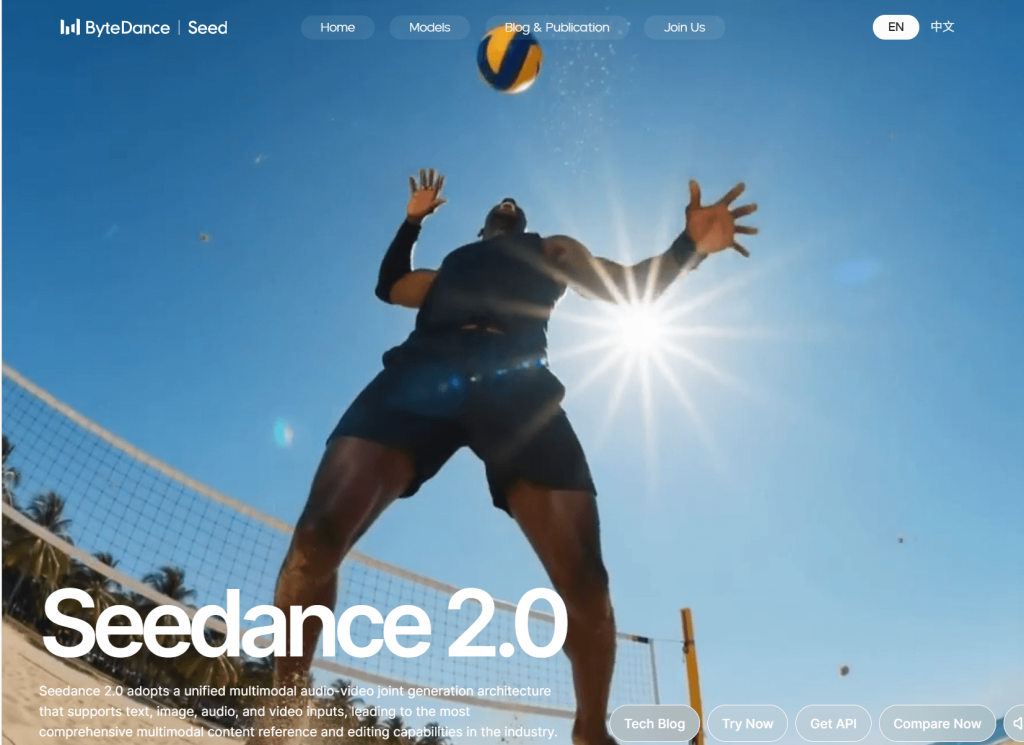
What Is Seedance AI 2.0?
Seedance AI 2.0 is an advanced AI video model that can take text, images, videos, and audio as inputs. It combines all the inputs for video generation instead of text alone, and so users can expect more controlled and consistent outputs. Because of this, people can potentially use it to generate:
- Animation (image to video)
- Video content (text to video)
- Cinematic scenes
- Scene/video content for social media
- Storyboard frames
- Visualization of creative concepts
One thing you should know is that this software is not a replacement for creativity. Instead, its purpose is to be a tool that allows people to quickly make videos out of their creative ideas.
How to Use Seedance AI 2.0 for AI Video Creation
Using the Seedance AI 2.0 tools requires some necessary steps, which we are going to share below:
Step 1: Prepare a High-Quality Reference Image
When making animations that change an image into a video, one of the most important things to consider is which image you choose to start with. The best starting images are those that have:
- Good lighting
- Clear subject separation
- Sharp details
- Minimal visual noise
- A simple background
Images that are low-quality or out of focus can lead to strange and inconsistent movement in the animation. The animation is a result of the images you provide to the AI, and if you provide good, clear images, the AI will be a lot more reliable.
Step 2: Write a Clear Prompt
Beginners may believe that long prompts equal better videos, whereas that’s not always the case. Prompt length doesn’t really matter as long as your request is clear. For instance, instead of saying:
“Create an amazing cinematic masterpiece with beautiful lighting, dramatic action, incredible movement, and artistic atmosphere.”
Say something like:
“Slow camera push-in, soft afternoon lighting, subject smiles naturally while wind moves through the hair.”

In this second prompt, the AI is given clear details. Your prompts should include the following:
- Subject action
- Camera movement
- Environment
- Lighting
- Mood
When factoring in these elements, you’ll get great results!
Step 3: Use Reference Assets Carefully
A great feature of Seedance AI 2.0 is how it handles numerous reference files. Images, videos, and sounds can assist in different elements of generation instead of only using text. For instance:
- Images can be used to maintain character appearance.
- Videos can assist with character movement.
- Audio can assist with rhythm and pacing.
Instead of confusing the model with many random files, select reference files for one specific creative idea.
Step 4: Keep Motion Natural
Animating everything at the same time is a mistake that is often made by first-timers. Videos that feature subtle movements appear more realistic. For instance:
- Slight head movements
- Natural blinks
- Cautious steps
- Minimal camera movement
- An environment that has subtle movement
While many movements can be distorted, they can also make the subject inconsistent.
A sure sign of AI videos that look professional is that they feature limited, controlled movement, as opposed to a large amount of constant movement.
Step 5: Choose the Right Camera Movement
How a scene feels can change drastically, thanks to camera direction. For example:
- A slow push-in makes a scene more intimate.
- A light pan can show more of the surrounding area,
- while a still camera can keep audience attention focused on a subject.
You should choose one specific movement in a single prompt when working with the AI because that is easier and generally clearer. When directions are not complex, or in this case simpler, the results tend to be better.
Step 6: Match the Aspect Ratio to Your Platform
You should think about where your video will be posted before creating it, as different platforms require different formats. For better understanding, check the chart below for reference.
| Platform | Recommended Ratio |
| Instagram Reels | 9:16 |
| TikTok | 9:16 |
| YouTube Shorts | 9:16 |
| Standard YouTube | 16:9 |
| Square social posts | 1:1 |
Once a video is made, any changes to the aspect ratio will crop the video, which will likely take away from what you want to communicate in the video. For the best results, make the correct format selection first.
Step 7: Generate Short Clips First
Lots of creators make their videos as long as possible right away, whereas making shorter clips first makes your workflow more effective. The benefits of sticking to these short generations include:
- Testing your prompts
- Evaluating the movement the prompt produced
- Checking to see if the result is consistent
- Identifying issues
All of these can be done quickly. Once you’re happy with the result, start generating longer clips. This method saves time and resources.
Common Mistakes to Avoid
There are lots of mistakes even seasoned creators run into. To avoid them, here are the most common ones:
- Too many instructions: Telling the program to do 10 different actions can be confusing.
- Bad reference images: Using a blurry or low-resolution image can produce bad results.
- Too much camera movement: Excessive movement can make a video hard to watch.
- Making a bunch of changes at once: Don’t overwhelm the program. Explain to it what you’re changing and what you expect to improve.
Making smaller edits to a video can be a lot more effective than a large change to your instructions.
Privacy Tips Before Uploading Images
We recommend reviewing these things before uploading any personal photos or client photos to foreign platforms.
- Look at the privacy policy.
- Consider if uploads are retained after generation.
- See if your prompts are stored in your history.
- Strip sensitive files of metadata.
- Never upload files that could be used to reveal someone’s identity.
The platform or its creators have a legal obligation to protect the privacy of its users. Hence, developing good privacy habits is just as important as learning how to prompt effectively.
An Alternative for a Simpler Workflow
With Seedance AI 2.0, creators are given plenty of opportunities to make adjustments. Its reference options are comprehensive, and for some creators, that’s a dream come true. Not everyone has those same needs.
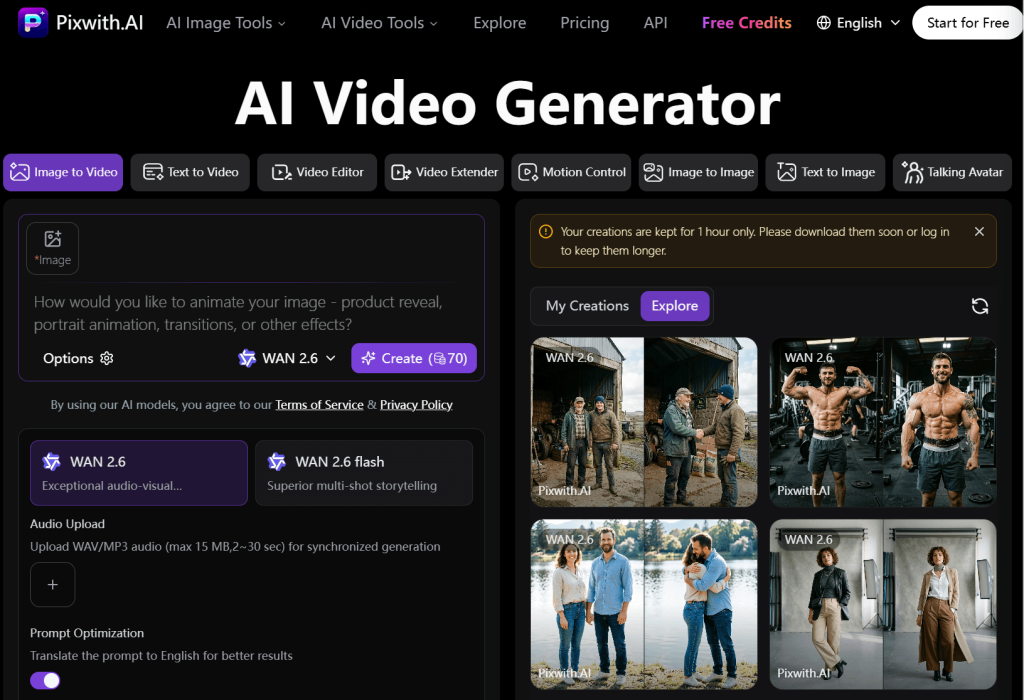
Should your only need involve uploading a picture, typing out a prompt, and generating an easy and quick video, Pixwith is a great option. It is a user-friendly image-to-video generator and has many simpler approaches to creativity. Rather than relying on multiple advanced options, it will let creators spend their time generating rather than adjusting.
Conclusion
Using Seedance AI 2.0 is about knowing the best way to do tasks instead of learning everything about the program. Good reference images, clear instructions, and the correct settings to control the motion will prove more beneficial over time than making tasks more complicated.
Whether you are making social media videos, project animations, or any other creative projects, having a consistent method will give the best shots every time.
A simpler AI-designed tool for fast and easy videos than the ones that require a lot of time to make videos and are more restrictive compared to Seedance AI 2.0 is Pixwith. It is a program that relies on an image-to-video function and gives you creative control.